Usage in FTC
The primary goal of building a visual pipeline in PaperVision is to generate reliable Java code that can be integrated directly into your FTC robot’s OpMode. This process involves three main steps: Generation, Integration, and Data Access.
1. Code Generation and Integration
When you export your completed visual pipeline from the editor, it creates a standard Java class that extends OpenCvPipeline (often provided by the EasyOpenCV library).
- Generate the File: The editor creates a
.javafile (e.g.,MyPaperVisionPipeline.java) that contains all the complex computer vision logic you designed visually. - Add to Project: You must copy this generated file into the appropriate directory of your FTC robot’s Android Studio project (typically under
TeamCodeor a similar folder). - No Modification Needed: The beauty of this process is that you should not need to edit the generated file. All adjustments to thresholds, blurring, and filtering can be done in the visual editor and re-exported.
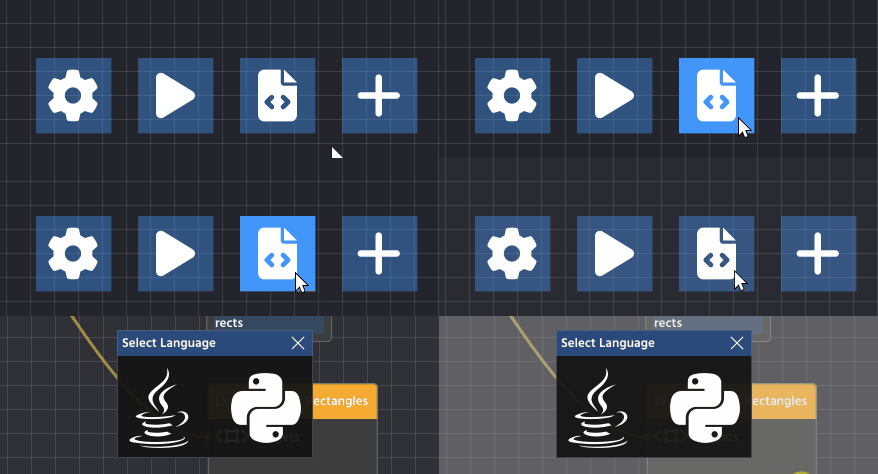
2. Instantiating the Pipeline in Your OpMode
Your robot’s code (in your LinearOpMode or TeleOp) needs to initialize and start the pipeline. This involves setting up the camera and instructing it to use your custom class.
Example OpMode Setup (Java)
You will use an instance of OpenCvCamera (from EasyOpenCV) and set your pipeline class as the processor:
Note
It is not the purpose of this chapter to be an in-depth guide of EasyOpenCV. There’s a documentation page that goes through this in the repository!
import org.openftc.easyopencv.OpenCvWebcam;
// Import your generated pipeline class
import org.firstinspires.ftc.teamcode.vision.MyDetectionPipeline;
// ... other imports

public class MyVisionOpMode extends LinearOpMode {
    OpenCvWebcam webcam;
    MyDetectionPipeline pipeline;

    @Override
    public void runOpMode() {
        // 1. Instantiate your pipeline
        pipeline = new MyPaperVisionPipeline();

        // 2. Set up the camera (using FTC configuration names)
        int cameraMonitorViewId = hardwareMap.appContext.getResources().getIdentifier("cameraMonitorViewId", "id", hardwareMap.appContext.getPackageName());
        webcam = OpenCvCameraFactory.getInstance().createWebcam(hardwareMap.get(WebcamName.class, "Webcam 1"), cameraMonitorViewId);

        // 3. Set your pipeline as the camera's processor
        webcam.setPipeline(pipeline);

        // 4. Start streaming
        webcam.openCameraDeviceAsync(new OpenCvCamera.AsyncCameraOpenListener() {
            @Override
            public void onOpened() {
                webcam.startStreaming(320, 240, OpenCvCameraRotation.UPRIGHT);
            }
            // ... error handling
        });

        // ... rest of OpMode setup
    }
}
3. Data Access (Retrieving Targets)
Once the camera is streaming and the pipeline is running, the processFrame() method in your pipeline continually updates the lists of detected targets. You retrieve this data within your OpMode’s main loop before making a movement decision.
Note
Read “Target Exporting” in this documentation for the in-depth guide of this section!
You access the data using the public methods generated by the Export Targets nodes (e.g., getRotRectTarget, getRectTargets):
// Inside your OpMode's loop: while (opModeIsActive())
// Retrieve the single target closest to the crosshair
RotatedRect nearestTarget = pipeline.getRotRectTarget("nearest_object");

if (nearestTarget != null) {
    // Read the angle and center point calculated by the pipeline
    double targetAngle = nearestTarget.angle;
    Point center = nearestTarget.center;

    // Example decision logic:
    if (targetAngle < -5) {
        // Rotate robot left
    } else if (targetAngle > 5) {
        // Rotate robot right
    }
}
This article was last modified...
On 2026-03-21 01:07:14 -06:00
By Sebastian Erives
See it here:9f222a6ce64832a9c20251660c897366ca06ec74